Interface Overview
Main Interface Layout
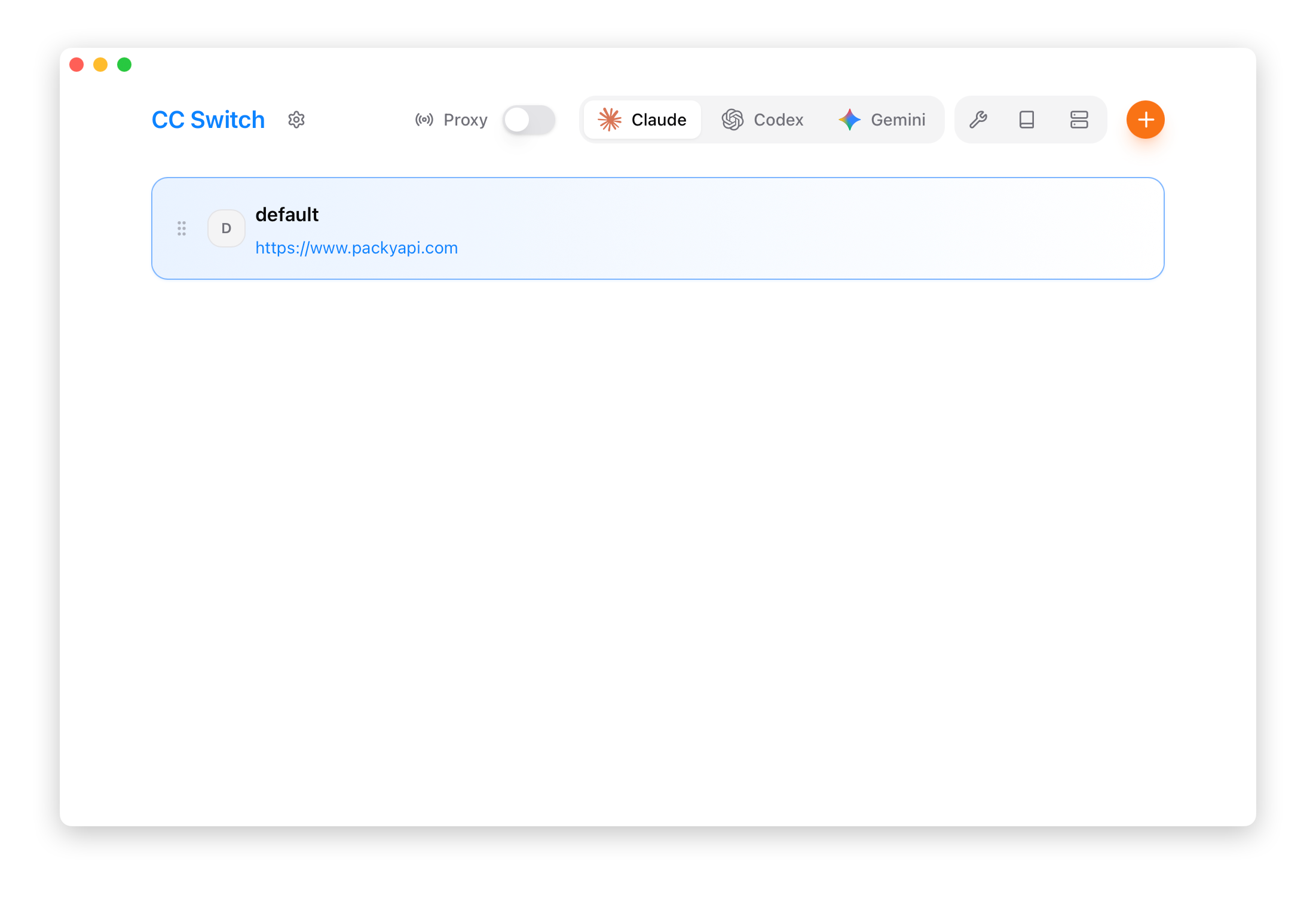
Top Navigation Bar
| # | Element | Description |
|---|---|---|
| 1 | Logo | Click to visit the GitHub project page |
| 2 | Settings Button | Open the settings page (shortcut Cmd/Ctrl + ,) |
| 3 | Proxy Toggle | Start/stop the local proxy service |
| 4 | App Switcher | Switch between Claude / Claude Desktop / Codex / Gemini / OpenCode / OpenClaw / Hermes |
| 5 | Feature Area | Skills / Prompts / MCP entry points |
| 6 | Add Button | Add a new provider |
App Switcher
Click the dropdown menu to switch the currently managed application:
- Claude - Manage Claude Code configuration
- Claude Desktop - Manage Claude Desktop third-party providers and official mode
- Codex - Manage Codex configuration
- Gemini - Manage Gemini CLI configuration
- OpenCode - Manage OpenCode configuration
- OpenClaw - Manage OpenClaw configuration
- Hermes - Manage Hermes Agent providers and Memory
After switching, the provider list displays the configurations for the selected application.
Feature Area Buttons
| Button | Function | Visibility |
|---|---|---|
| Skills | Skill extension management | Always visible |
| Prompts | System prompt management | Always visible |
| MCP | MCP server management | Always visible |
Provider Cards
Each provider is displayed as a card, containing the following elements from left to right:
Card Elements (Left to Right)
| # | Element | Icon | Description |
|---|---|---|---|
| 1 | Drag Handle | ≡ | Hold and drag up/down to reorder providers |
| 2 | Provider Icon | - | Displays provider brand icon with customizable color |
| 3 | Provider Info | - | Name, notes/endpoint URL (clickable to open website) |
| 4 | Usage Info | - | Shows remaining balance; displays plan count for multi-plan |
| 5 | Enable Button | - | Switch to this provider |
| 6 | Edit Button | - | Edit provider configuration |
| 7 | Duplicate Button | - | Duplicate provider (create a copy) |
| 8 | Speed Test Button | - | Test model availability and response speed |
| 9 | Usage Query | - | Configure usage query script |
| 10 | Delete Button | - | Delete provider (disabled when currently active) |
Tip: The action buttons area (5-10) appears on hover and is hidden by default to keep the interface clean.
Starting from v3.15.0, some Claude Code and Codex provider cards also show a Local Routing support badge, helping you quickly identify providers that can be served through local routing.
Button Details
| Button | State Changes | Notes |
|---|---|---|
| Enable | Shows checkmark and disables when active | Changes to "Join/Joined" in failover mode |
| Edit | Always available | Opens edit panel to modify configuration |
| Duplicate | Always available | Creates a copy with copy suffix |
| Speed Test | Shows loading animation during test | Only available when proxy service is running |
| Usage Query | Always available | Configure custom usage query script |
| Delete | Semi-transparent/disabled when active | Must switch to another provider first |
Card States
| State | Border Color | Description |
|---|---|---|
| Currently Active | Blue border | Current provider in normal mode |
| Proxy Active | Green border | Provider actually in use during proxy takeover mode |
| Normal | Default border | Inactive provider |
| In Failover | Shows priority badge | e.g., P1, P2 indicates failover priority |
Health Status Badges
In proxy mode, providers in the failover queue display health status:
| Badge | Color | Description |
|---|---|---|
| Healthy | Green | 0 consecutive failures |
| Warning | Yellow | 1-2 consecutive failures |
| Unhealthy | Red | 3+ consecutive failures, may trigger circuit breaker |
System Tray
Olenro displays an icon in the system tray, providing quick access to operations.
Tray Menu Structure
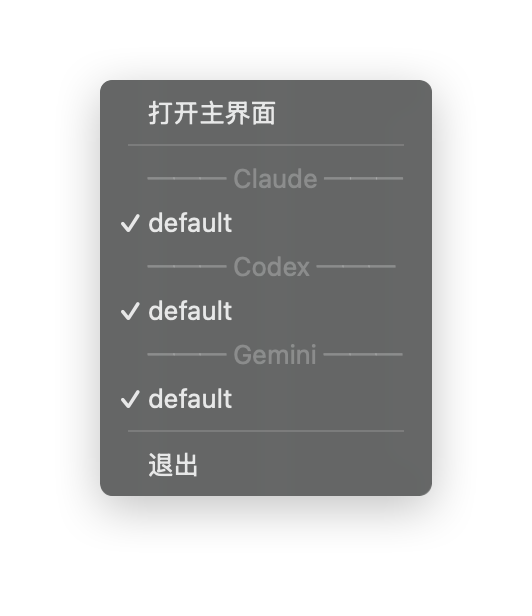
Menu Functions
| Menu Item | Function |
|---|---|
| Open Main Window | Show and focus the main window |
| App Submenus | Collapsible submenus grouped by Claude/Codex/Gemini (e.g., "Claude · PackyCode"), with current provider and cached usage summaries when available |
| Provider List | Inside each submenu, click to switch; currently active shows a checkmark |
| Lightweight Mode | Toggle checkbox to enter/exit tray-only mode |
| Quit | Fully exit the application |
Note: Each tray submenu title shows the current provider name (e.g., "Claude · PackyCode"). Apps with no configured providers show a disabled "(no providers)" entry. The tray currently focuses on Claude / Codex / Gemini, the apps that support proxy routing and usage summaries; main-window app visibility is still controlled by the App Visibility setting.
Multi-language Support
The tray menu supports three languages, automatically switching based on settings:
| Language | Open Main Window | Quit |
|---|---|---|
| Chinese | Open Main Window | Quit |
| English | Open main window | Quit |
| Japanese | Open main window | Quit |
Lightweight Mode
The tray menu includes a Lightweight Mode toggle (checkbox). When enabled:
- The main window is closed to free up resources
- The app continues running in the system tray only
- You can still switch providers via the tray submenus
- On macOS, the Dock icon is also hidden
To exit Lightweight Mode, uncheck the toggle or click "Open main window" — the main window will be rebuilt and shown.
Use Cases
Switching providers via the tray menu doesn't require opening the main window, suitable for:
- Frequently switching providers
- Quick operations when the main window is minimized
- Managing configurations while running in the background
- Running in Lightweight Mode for minimal resource usage
Settings Page
The settings page is divided into multiple tabs:
General Tab
- Language settings (Chinese/English/Japanese)
- Theme settings (System/Light/Dark)
- Window behavior (launch on startup, close behavior)
Advanced Tab
- Configuration directory settings
- Proxy service configuration
- Failover settings
- Pricing configuration
- Data import/export
Usage Tab
- Request statistics overview
- Trend charts
- Request logs
- Provider/model statistics
About Tab
- Version information
- Update check
- Open source license
Keyboard Shortcuts
| Shortcut | Function |
|---|---|
Cmd/Ctrl + , | Open Settings |
Cmd/Ctrl + F | Search providers |
Esc | Close dialog/search |
Search
Press Cmd/Ctrl + F to open the search bar:
- Search by name, notes, or URL
- Real-time provider list filtering
- Press
Escto close search